


2006
2007
2008
2009
National Indoor Championships, Birmingham
Podcast
Men’s European Cup Winners Cup, Reading
Podcast
England Hockey Cup Finals, Reading
Podcast
Women’s World Cup Qualifier, Rome.
Podcast
Super Cup, Cannock
Podcast
England v Australia Women’s International, Reading
Photographs
England v Japan Women’s International, East Grinstead
Photographs
Women’s Olympic Qualifier, Rome
Podcast
Women’s European Club Championships, Berlin
Podcast
Men’s World Cup, Monchengladbach
Podcast and photographs
Women’s World Cup, Madrid
Podcast and photographs
Podcast
Men’s European Cup Winners Cup, Reading
Podcast
England Hockey Cup Finals, Reading
Podcast
Women’s World Cup Qualifier, Rome.
Podcast
Super Cup, Cannock
Podcast
England v Australia Women’s International, Reading
Photographs
England v Japan Women’s International, East Grinstead
Photographs
Women’s Olympic Qualifier, Rome
Podcast
Women’s European Club Championships, Berlin
Podcast
Men’s World Cup, Monchengladbach
Podcast and photographs
Women’s World Cup, Madrid
Podcast and photographs
National Indoor Championships, Birmingham
Podcast and photographs
Men’s European Indoor Clubs Trophy, Brussels
Podcast and photographs
Women’s European Indoor Clubs Championship, Hamburg
Podcast
Varsity Match, Southgate
Podcast and photographs
Men’s and Women’s European Cup Winners Cup, Madrid
Podcast and photograhs
GB Super League, Swansea
Podcast and photographs
England Hockey Cup
Podcast and photographs
Men’s European Club Championship, Bloemendaal
Podcast and photographs
Men’s Champions Challenge, Boom
Podcast and photographs
European Nations Championships, Manchester
Podcast and photographs
Men’s Champions Trophy, Kuala Lumpur
Podcast and photographs
Podcast and photographs
Men’s European Indoor Clubs Trophy, Brussels
Podcast and photographs
Women’s European Indoor Clubs Championship, Hamburg
Podcast
Varsity Match, Southgate
Podcast and photographs
Men’s and Women’s European Cup Winners Cup, Madrid
Podcast and photograhs
GB Super League, Swansea
Podcast and photographs
England Hockey Cup
Podcast and photographs
Men’s European Club Championship, Bloemendaal
Podcast and photographs
Men’s Champions Challenge, Boom
Podcast and photographs
European Nations Championships, Manchester
Podcast and photographs
Men’s Champions Trophy, Kuala Lumpur
Podcast and photographs
European Indoor Nations Challenge, Sheffield
Podcast and photographs
National Indoor Championships, Birmingham
Podcast and photographs
Men’s European Indoor Clubs Championships, Perth
Podcast and photographs
Women’s European Indoor Clubs Championships, Prague
Podcast
Varsity Match, Southgate
Photographs
European Women’s Cup Winners Cup, Paris
Podcast
EuroHockey League 2nd/3rd round, Terrassa
Podcast and photographs
GB Super League, Edinburgh
Podcast and photographs
England Hockey Cup Finals, Nottingham
Podcast and photographs
EuroHockey League semis and finals, Rotterdam
Report
Setanta Trophy, Dublin
Podcast and photographs
Men’s Champions Trophy and Women’s Four Nations, Rotterdam
Podcast
‘Heroes Return’ GB 1988 Celebrations, Manchester
Photographs
EuroHockey League Round 1a, Amsterdam
Report
EuroHockey League Round 1b, Lille
Podcast and photographs
Tri-Nations Indoor Hockey Tournament, Eastleigh
Podcast and photographs
Podcast and photographs
National Indoor Championships, Birmingham
Podcast and photographs
Men’s European Indoor Clubs Championships, Perth
Podcast and photographs
Women’s European Indoor Clubs Championships, Prague
Podcast
Varsity Match, Southgate
Photographs
European Women’s Cup Winners Cup, Paris
Podcast
EuroHockey League 2nd/3rd round, Terrassa
Podcast and photographs
GB Super League, Edinburgh
Podcast and photographs
England Hockey Cup Finals, Nottingham
Podcast and photographs
EuroHockey League semis and finals, Rotterdam
Report
Setanta Trophy, Dublin
Podcast and photographs
Men’s Champions Trophy and Women’s Four Nations, Rotterdam
Podcast
‘Heroes Return’ GB 1988 Celebrations, Manchester
Photographs
EuroHockey League Round 1a, Amsterdam
Report
EuroHockey League Round 1b, Lille
Podcast and photographs
Tri-
2010
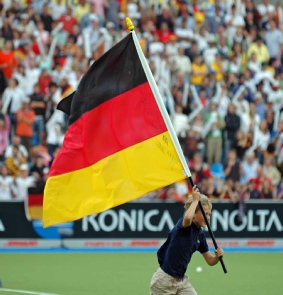
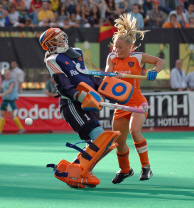
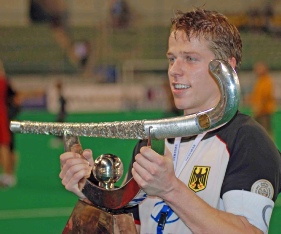
The highlight of 2006 was undoubtedly the World Cup in Monchengladbach, where England came a creditable fifth. The winners were Germany who defeated Australia in the final. Our photograph shows a young German fan celebrating his country’s victory
The Men’s World Cup was followed a few weeks later by the Women’s World Cup in Madrid. The Australians were the losing finalists again.
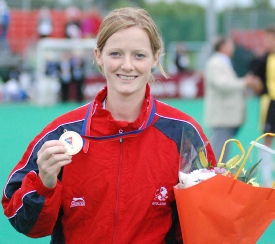
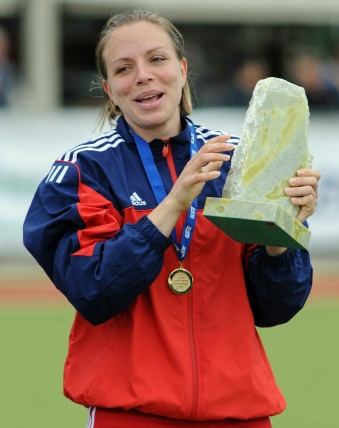
Major hockey events made a return to England in 2007 with the European Nations Cup in Manchester, where England’s women won the bronze and qualified for the Beijing Olympics. Our photograph shows an exhausted but happy Helen Richardson showing us her bronze medal.
TalkHockeyRadio went truly global in 2007 when we travelled to Kuala Lumpur for the Men’s Champions Trophy, won by Germany.
A look back at the events we have covered since we started in 2006
TalkHockeyRadio and HockeyTalk magazine both produce end of year reviews and you
can listen to these by clicking on the downloads below at the end of each year.
TalkHockeyRadio and HockeyTalk magazine both produce end of year reviews and you
can listen to these by clicking on the downloads below at the end of each year.
In their preparations for the Beijing Olympics we saw action from both the Great Britain men’s and women’s teams in 2008. TalkHockeyRadio Travelled to Dublin to see the GB women carry off the Setanta Trophy
TalkHockeyRadio has been an enthusiastic supporter of the EuroHockey League and in 2008 we went to Rounds 3 and 4 of the 2007-2008 season at Club Egara in Terrassa and Round 1 of the 2008-2009 season in Lille.
National Indoor Club Championships, Birmingham
Podcast and photographs
European Indoor Club Championships, Madrid
Podcast and photographs
Varsity Match, Southgate
Photographs
EuroHockey League KO16, Hamburg
Podcast and photographs
Women’s European Cup Winners Cup, Manchester
Podcast
Visit to FIH Headquarters and Olympic Museum, Lausanne
Podcast and photographs
GB Super League Final Day, Cannock
Photographs
England Hockey League Promotion Play-offs, Bristol
Photographs
England Hockey Cup Final, Nottingham
Pocast and photographs
England Hockey’s Big Night Out Awards, Nottingham
Podcast and photographs
EuroHockey League Finals, Rotterdam
Podcast and photographs
Women’s European Club Champions Cup, ‘s-Hertogenbosch
Report
England v Australia Internationals at Nottingham
Podcast and photographs
England v Spain Internationals at Nottingham
Podcast and photographs
England v Pakistan Internationals at Cannock
Podcast and photographs
England v India at Birmingham
Podcast and photographs
England v Netherlands at Bisham Abbey
Podcast and photographs
EuroHockey Nations Trophy at Wrexham
Report
EuroHockey League, Paris
Podcast and photographs
Indoor Internationals (England v Scotland) at Birmingham
Photographs
Champions Trophy, Melbourne
Podcast
Podcast and photographs
European Indoor Club Championships, Madrid
Podcast and photographs
Varsity Match, Southgate
Photographs
EuroHockey League KO16, Hamburg
Podcast and photographs
Women’s European Cup Winners Cup, Manchester
Podcast
Visit to FIH Headquarters and Olympic Museum, Lausanne
Podcast and photographs
GB Super League Final Day, Cannock
Photographs
England Hockey League Promotion Play-
England Hockey Cup Final, Nottingham
Pocast and photographs
England Hockey’s Big Night Out Awards, Nottingham
Podcast and photographs
EuroHockey League Finals, Rotterdam
Podcast and photographs
Women’s European Club Champions Cup, ‘s-
England v Australia Internationals at Nottingham
Podcast and photographs
England v Spain Internationals at Nottingham
Podcast and photographs
England v Pakistan Internationals at Cannock
Podcast and photographs
England v India at Birmingham
Podcast and photographs
England v Netherlands at Bisham Abbey
Podcast and photographs
EuroHockey Nations Trophy at Wrexham
Report
EuroHockey League, Paris
Podcast and photographs
Indoor Internationals (England v Scotland) at Birmingham
Photographs
Champions Trophy, Melbourne
Podcast
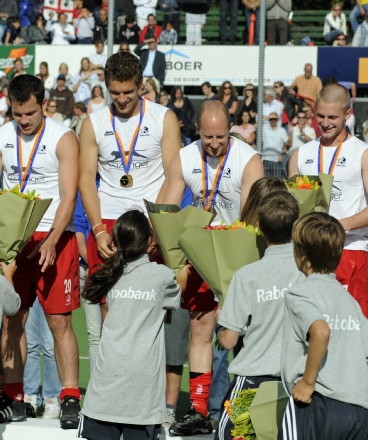
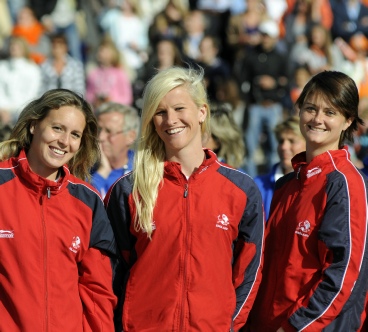
TalkHockeyRadio had a busy year in 2009 but the undoubted highlight was the European Cup in Amsterdam. England’s women, who had been widely tipped to win the bronze, did so in style. But the shock to everyone was the performance of England’s men who romped home to take the Cup beating both The Netherlands and Germany on the way.
Women’s EuroHockey Indoor Nations Challenge, Rouen
Podcast and photographs
National Indoor Championships
Podcast and photographs
Men’s EuroHockey Indoor Clubs Trophy, Vienna
Podcast and photographs
Varsity Match, Southgate
Photographs
Hero Honda Men’s World Cup, New Delhi
Podcast
EuroHockey League Rounds Two and Three, Rotterdam
Podcast and photographs
Great Britain v China (Women) at Bisham Abbey
Podcast and photographs
England Hockey League Championships (Men) at Cannock
Podcast and photographs
EH Cup Finals, Nottingham
Podcast and photographs
EuroHockey League Finals, Amsterdam
Podcast and photographs
Great Britain v Germany at Bisham Abbey
Photographs
Great Britain v Australia at Bisham Abbey
Podcast and photographs
Women’s Champions Trophy, Nottingham
Podcast and photographs
Men’s Champions Trophy, Monchengladbach
Podcast and photographs
EuroHockey League Round 1.2, Terrassa
Podcast and Photographs
Podcast and photographs
National Indoor Championships
Podcast and photographs
Men’s EuroHockey Indoor Clubs Trophy, Vienna
Podcast and photographs
Varsity Match, Southgate
Photographs
Hero Honda Men’s World Cup, New Delhi
Podcast
EuroHockey League Rounds Two and Three, Rotterdam
Podcast and photographs
Great Britain v China (Women) at Bisham Abbey
Podcast and photographs
England Hockey League Championships (Men) at Cannock
Podcast and photographs
EH Cup Finals, Nottingham
Podcast and photographs
EuroHockey League Finals, Amsterdam
Podcast and photographs
Great Britain v Germany at Bisham Abbey
Photographs
Great Britain v Australia at Bisham Abbey
Podcast and photographs
Women’s Champions Trophy, Nottingham
Podcast and photographs
Men’s Champions Trophy, Monchengladbach
Podcast and photographs
EuroHockey League Round 1.2, Terrassa
Podcast and Photographs
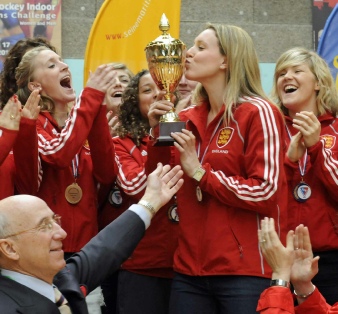
England’s women celebrated victory in the EuroHockey Indoor Nations Trophy in Rouen.
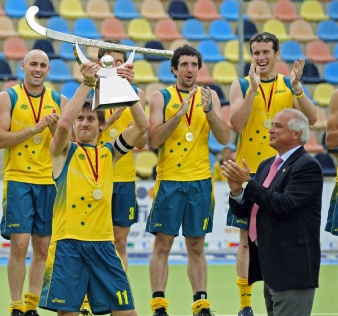
Australia lift the Champions Trophy in Monchengladbach. England won silver.
2011
‘Super Sixes’ National Indoor Finals, Wembley
Podcast and photographs
FIH Indoor World Cup in Poznan, Poland
Podcast and photographs
LOCOG Blue Olympic pitch announcement
Varsity Match, Southgate
Photographs
EuroHockey League KO16, Bloemendaal, Netherlands
Podcast and photographs
Senior Finals, Tonbridge
Photographs
GB V Canada at Bisham Abbey
Photographs and podcast
GB v China at Bisham Abbey
Photographs and podcast
GB v Ireland at Bisham Abbey
Photographs and podcast
GB v Belgium at Bisham
Photographs
England Hockey Championships, Cannock
Photographs and podcast
England Hockey Cup Finals, Cannock
Photographs and podcast
EuroHockey League Finals, Wassenaar, The Netherlands
Photographs and podcast
Women’s Champions Trophy + Men’s Four Nations, Amsterdam
Photographs and podcast
The London Cup, London.
Photographs and podcast
EHB Annual Awards, London
Photographs and podcast
Men’s and Women’s European Championsips, Monchengladbach
Photographs and Podcast
EuroHockey League Round 1.1, Mulheim
Photographs and Podcast
EuroHockey League Round 1.2, Antwerp
Photographs and Podcast
London Olympic Park pitch visit
Photographs and Podcast
European Indoor Nations Championships II, Slageslse, Denmark
Photographs and Podcast
Maxifuel Super Sixes Finals, Wembley
Photographs and podcast
European Indoor Club Championships, Hamburg
Photographs and podcast
EuroHockey League KO16, Rotterdam
Photographs and Podcast
2014 European Cup Announcement, Olympic Park, Stratford
Photographs and Podcast
England Hockey League Championships, Reading
Photographs and Podcast
EuroHockey League / Club Champions Cup Finals, Amsterdam
Photographs and Podcast
Olympic Test Event, Olympic Park, Stratford
Photographs and Podcast
Olympic Hockey Tournament – London 2012 Games
Photographs
Masters World Cup, Canterbury
Photographs and Podcast
Grand Masters World Cup, Oxford
Photographs and Podcast
EuroHockey League Rnd 1.2 East Grinstead
Photographs and Podcast
Podcast and photographs
FIH Indoor World Cup in Poznan, Poland
Podcast and photographs
LOCOG Blue Olympic pitch announcement
Varsity Match, Southgate
Photographs
EuroHockey League KO16, Bloemendaal, Netherlands
Podcast and photographs
Senior Finals, Tonbridge
Photographs
GB V Canada at Bisham Abbey
Photographs and podcast
GB v China at Bisham Abbey
Photographs and podcast
GB v Ireland at Bisham Abbey
Photographs and podcast
GB v Belgium at Bisham
Photographs
England Hockey Championships, Cannock
Photographs and podcast
England Hockey Cup Finals, Cannock
Photographs and podcast
EuroHockey League Finals, Wassenaar, The Netherlands
Photographs and podcast
Women’s Champions Trophy + Men’s Four Nations, Amsterdam
Photographs and podcast
The London Cup, London.
Photographs and podcast
EHB Annual Awards, London
Photographs and podcast
Men’s and Women’s European Championsips, Monchengladbach
Photographs and Podcast
EuroHockey League Round 1.1, Mulheim
Photographs and Podcast
EuroHockey League Round 1.2, Antwerp
Photographs and Podcast
London Olympic Park pitch visit
Photographs and Podcast
European Indoor Nations Championships II, Slageslse, Denmark
Photographs and Podcast
Maxifuel Super Sixes Finals, Wembley
Photographs and podcast
European Indoor Club Championships, Hamburg
Photographs and podcast
EuroHockey League KO16, Rotterdam
Photographs and Podcast
2014 European Cup Announcement, Olympic Park, Stratford
Photographs and Podcast
England Hockey League Championships, Reading
Photographs and Podcast
EuroHockey League / Club Champions Cup Finals, Amsterdam
Photographs and Podcast
Olympic Test Event, Olympic Park, Stratford
Photographs and Podcast
Olympic Hockey Tournament –
Masters World Cup, Canterbury
Photographs and Podcast
Grand Masters World Cup, Oxford
Photographs and Podcast
EuroHockey League Rnd 1.2 East Grinstead
Photographs and Podcast
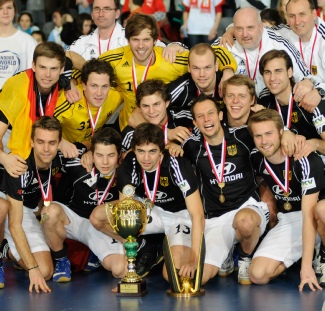
Germany win the 3rd FIH Indoor World Cup in Poznan.






To download the TalkHockeyRadio review of the previous five years CLICK HERE
To download the HockeyTalk Magazine review of 2010
CLICK HERE
To download the HockeyTalk Magazine review of 2010
CLICK HERE
To download the TalkHockeyRadio review of 2009 CLICK HERE
To download the HockeyTalk magazine review of 2009
CLICK HERE
To download the HockeyTalk magazine review of 2009
CLICK HERE
To download the TalkHockeyRadio review of 2008 CLICK HERE
To download the HockeyTalk Magazine review of 2008
CLICK HERE
To download the HockeyTalk Magazine review of 2008
CLICK HERE
To download the TalkHockeyRadio review of 2007 CLICK HERE
To download the HockeyTalk Magazine review of 2007
CLICK HERE
To download the HockeyTalk Magazine review of 2007
CLICK HERE
To download the TalkHockeyRadio review of 2006 CLICK HERE
To download the HockeyTalk Magazine review of 2006
CLICK HERE
To download the HockeyTalk Magazine review of 2006
CLICK HERE




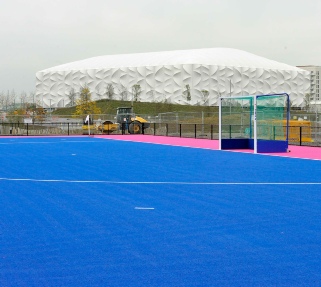
In October 2011 we got our first glimpse of the new Olympic hockey pitch in situ. The stands were to be built later. The Basketball Centre is in the background.
2012
To download the TalkHockeyRadio review of 2011 CLICK HERE
To download the HockeyTalk Magazine review of 2011
CLICK HERE
To download the HockeyTalk Magazine review of 2011
CLICK HERE

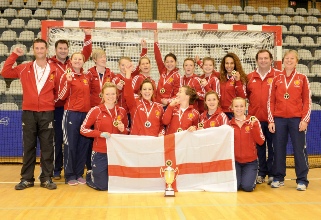
At the beginning of 2012 England won the European Nations Indoor Championships II in Slagelse, Denmark. This was despite Great Britain sending a women’s team to the Champions Trophy in Argentina over the same period.
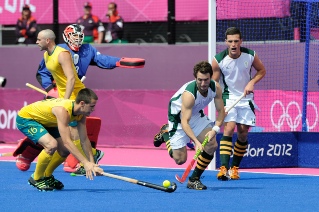
We joined forces with our friends at Push Hockey magazine in July and were able to shoot the Olympic Hockey tournament, where GB women won the bronze medal. The picture is of the men’s pool game between Australia and South Africa.
2013
To download the TalkHockeyRadio review of 2012 CLICK HERE
To download the HockeyTalk Magazine review of 2012
CLICK HERE
To download the HockeyTalk Magazine review of 2012
CLICK HERE

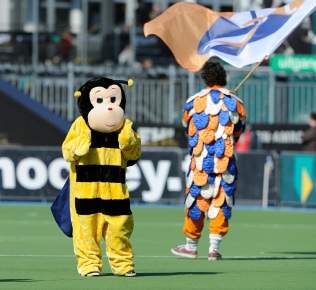
The Beeston and Bloemendaal mascots on the pitch together for their Round 3 match in Amsterdam.

England Women win silver in the European Nations Championships in Boom, near Antwerp.